
Exporting
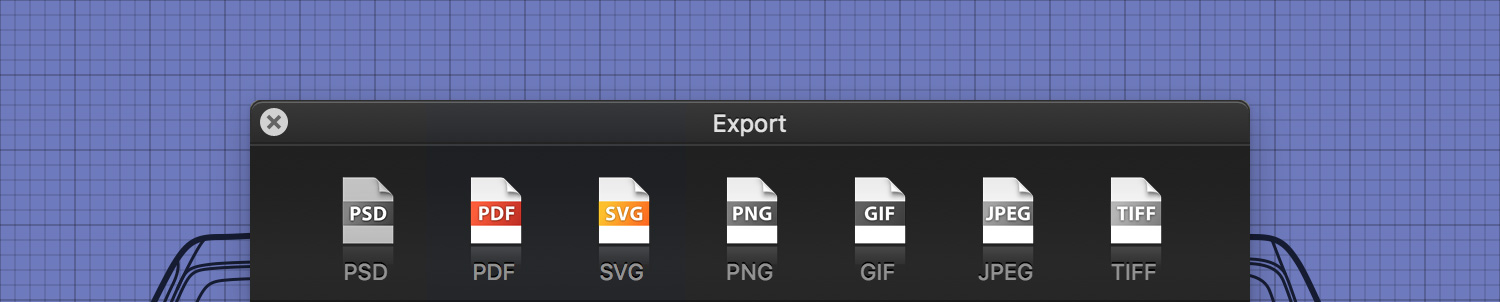
Once finished with a design, you can export it as an image or vector-based file. When ready to export, go to File > Export... [⌘ - ⌥ - E] to bring up the Export pop-up window.
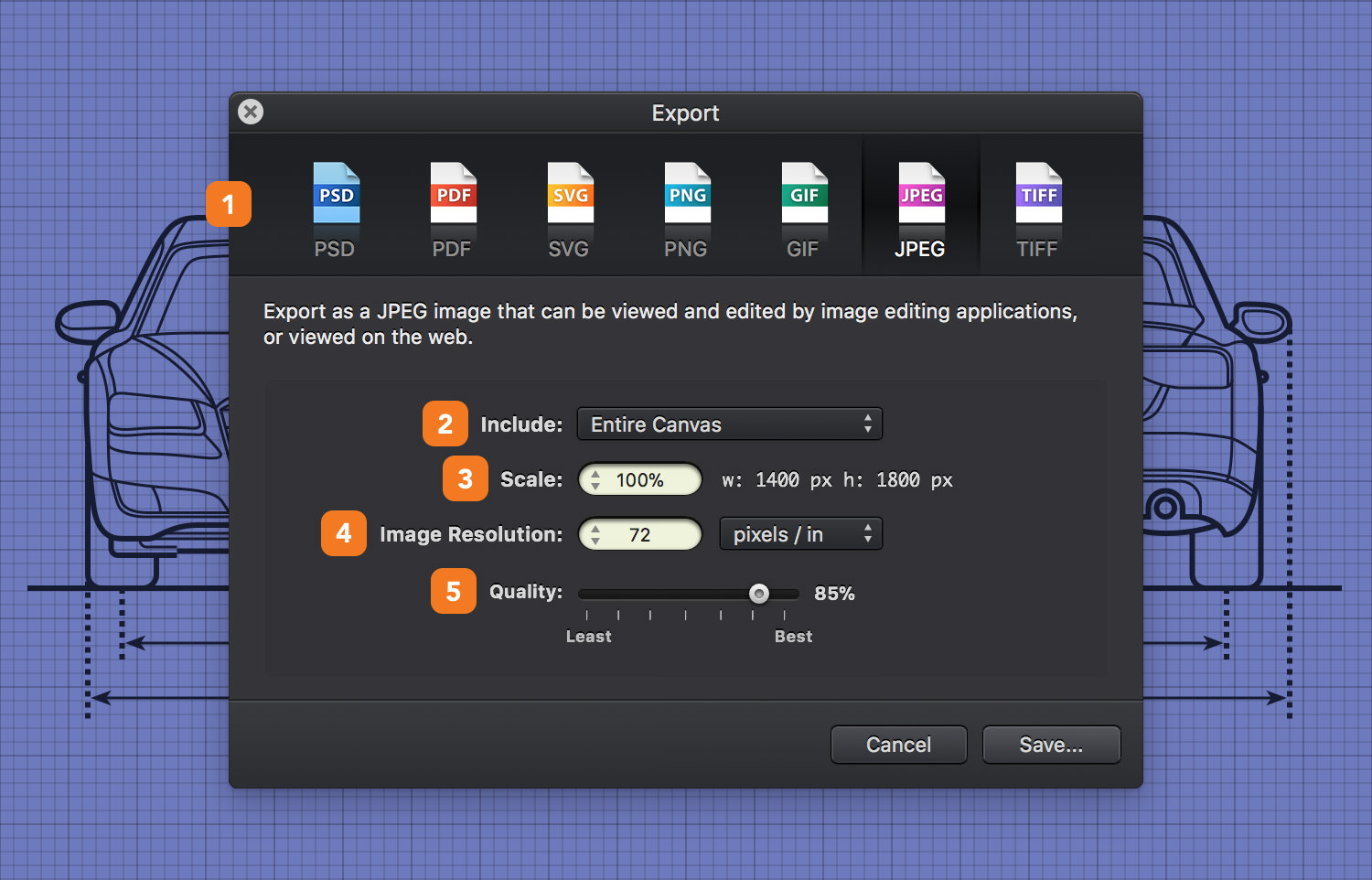
- File Format - Pick the file format to be used for the document you are about to export.
- Include - Select the content that your exported file should contain.
Select Entire Canvas to include the grid and the background in your exported file.
Select All Objects to export only your artwork. Using this option you can export a design with a transparent background. Only files in RGB color mode can be exported as PNG or TIFF with transparent background. Certain formats do not support transparent backgrounds, such as JPEG. When exporting to these formats, the background color will be white in transparent areas.
Select Selected Objects to only export the objects selected before opening the Export pop-up window.
-
Scale - Scale of your exported document.
-
Image Resolution - Set the image resolution to be used for your exported file.
-
Quality - Set the quality of the exported file. This option is only available when you’re exporting your document as a JPEG file. Lowering the quality will decrease the file size.
Image Export
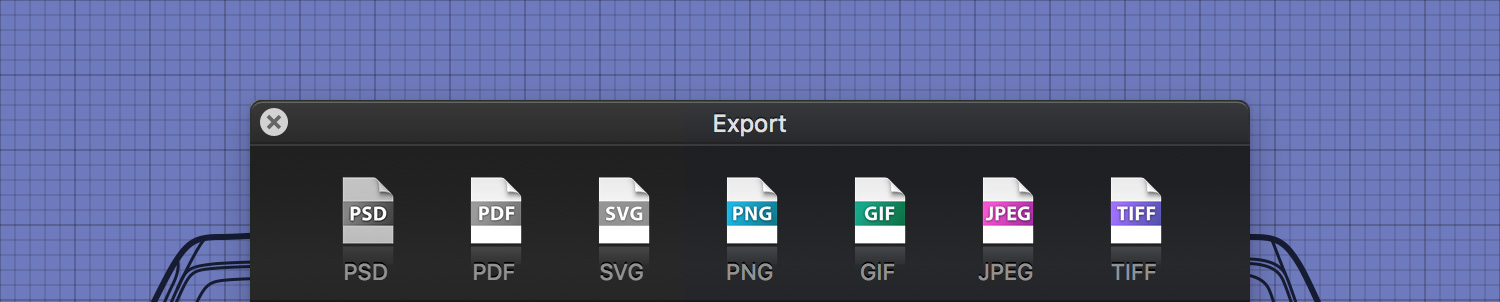
Export a design as an image using the PNG, GIF, JPEG or TIFF formats.
Vector Export
Export a design as an SVG or PDF file. These vector-based files can be imported and edited in other vector illustration applications.
PSD Export
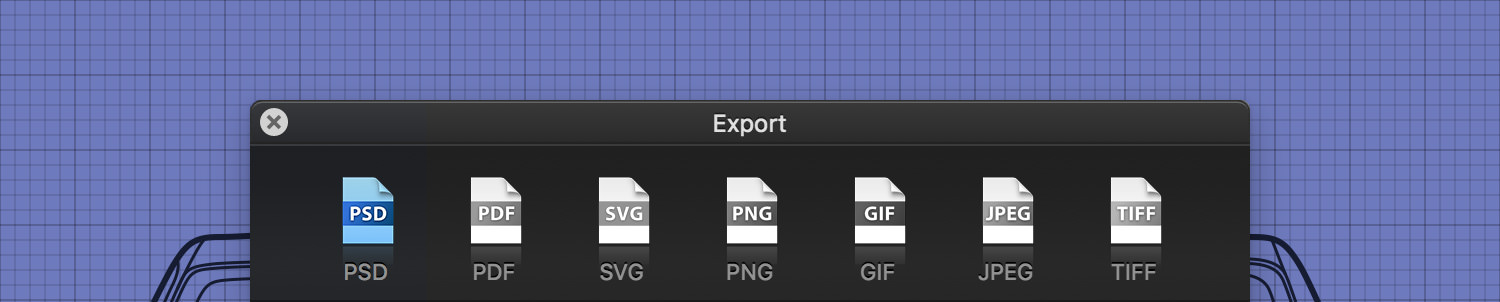
Export a design as a Photoshop PSD file.
Next: Exporting Layers >