
Creating Text
Choose the Text tool to add text objects to a design, or edit previously created text objects.
Simply click on your canvas to create a text box and start typing the text. Click-and-drag to create a text field of a fixed size. When a text field is filled, it creates a new line while a normal text box increases its width to fit the content.
To deselect a text field click anywhere on your canvas, outside the selected text field.
Tip: Use the T keyboard shortcut to quickly select the Text tool.
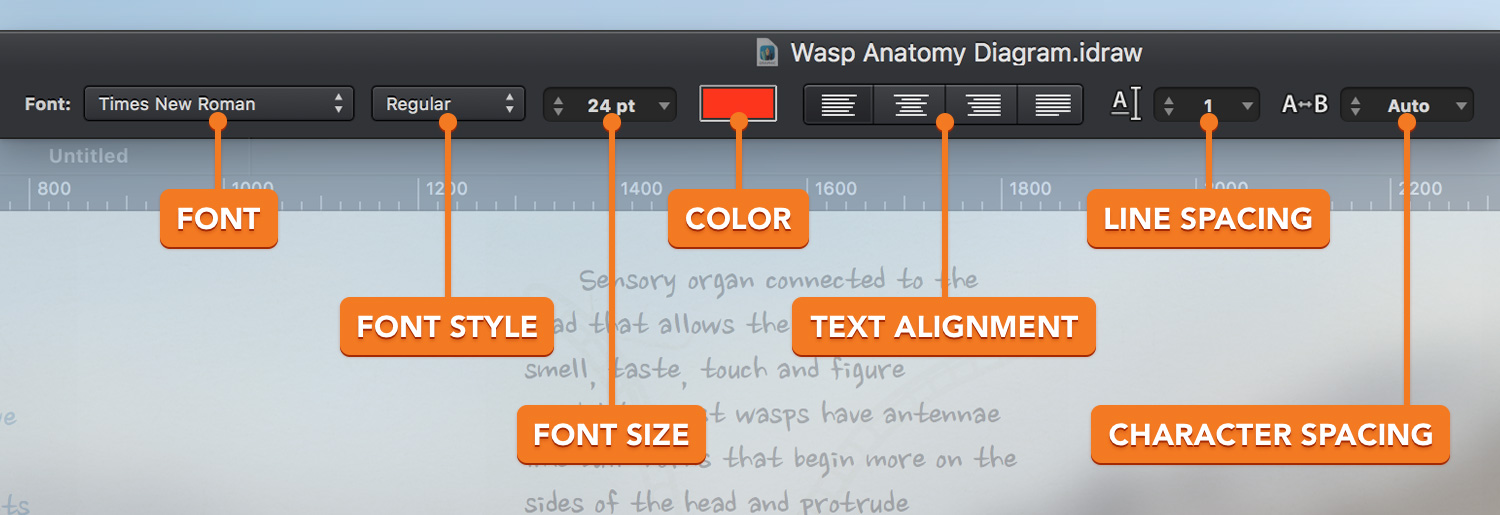
You can set the text properties, such as font, font style, font size, text color and alignment, character and line spacing of a text object using the settings in the Tool Options bar.
New text objects will use the properties set in the Tool Options bar.
To edit an existing text object, simply click on it with the Text tool active or double-click on it using the Move tool or the Path Selection tool.
To change the properties of an existing text object, you need to highlight the text before you make any changes. Click-and-drag to highlight the desired paragraphs and then you can make the changes.
Choose Edit > Select All [⌘ - A] from the menu bar to instantly select all your text. This command will ease your work when you're dealing with a lot of text.
Same text properties changes can be made using the Text pane from the Appearance panel.
Next: Customizing Text >