

Compound Paths
Multiple objects can be easily combined into a single object, a compound path. Compound paths can be divided back into separate objects using the Compound Path commands. Both commands can be found in the Path Tools pane from the Properties panel.
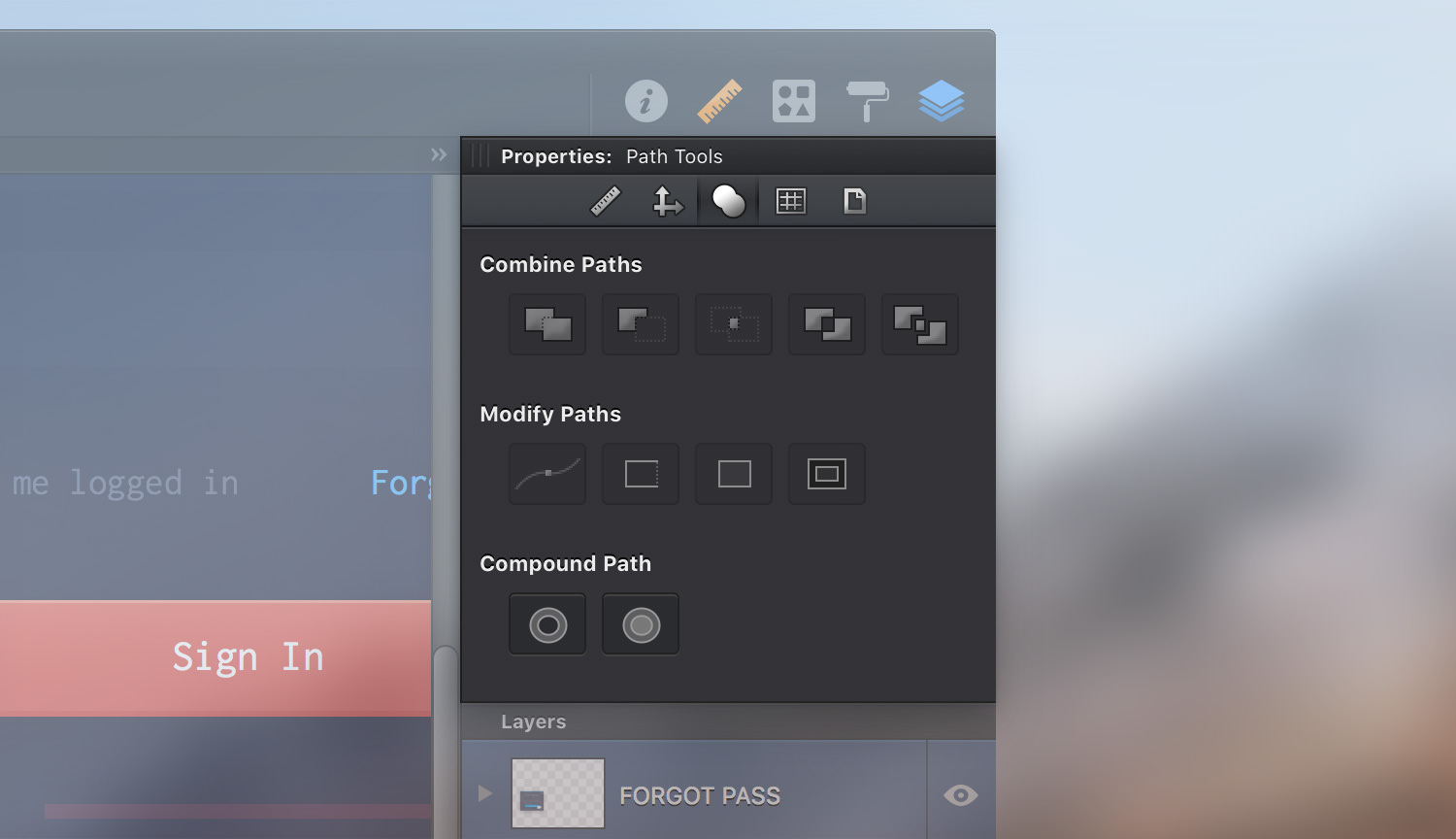
Make Compound Path - combines multiple paths into a single object.
Alternatively, you can choose Modify > Make Compound Path [⌘ - K] from the menu bar.
Separate Compound Path - divides the shapes that make up an existing compound path into separate editable shapes.
Alternatively, you can choose Modify > Separate Compound Path [⇧ - ⌘ - K] in the menu bar.
Compounded paths are treated as a single path, and share the same appearance attributes.
When you turn shapes with different attributes into one compound path your resulting compound path will keep the attributes of the rearmost selected shape.
Holes are created in areas where the paths overlap.
You can use compound paths to clip a single image or gradient fill across multiple disjoint shapes; a single fill is applied across all the paths in a compounded path object.
Next: Masking Objects >