

Transform Panel
Alternatively, objects or path points can be numerically moved, rotated, scaled or slanted using the Transform panel.
Select the objects/path points that you wish to transform, go to Modify > Rotate & Transform > Transform [⌘ - ⇧ - T] to open the Transform panel and choose from the tab menu between:
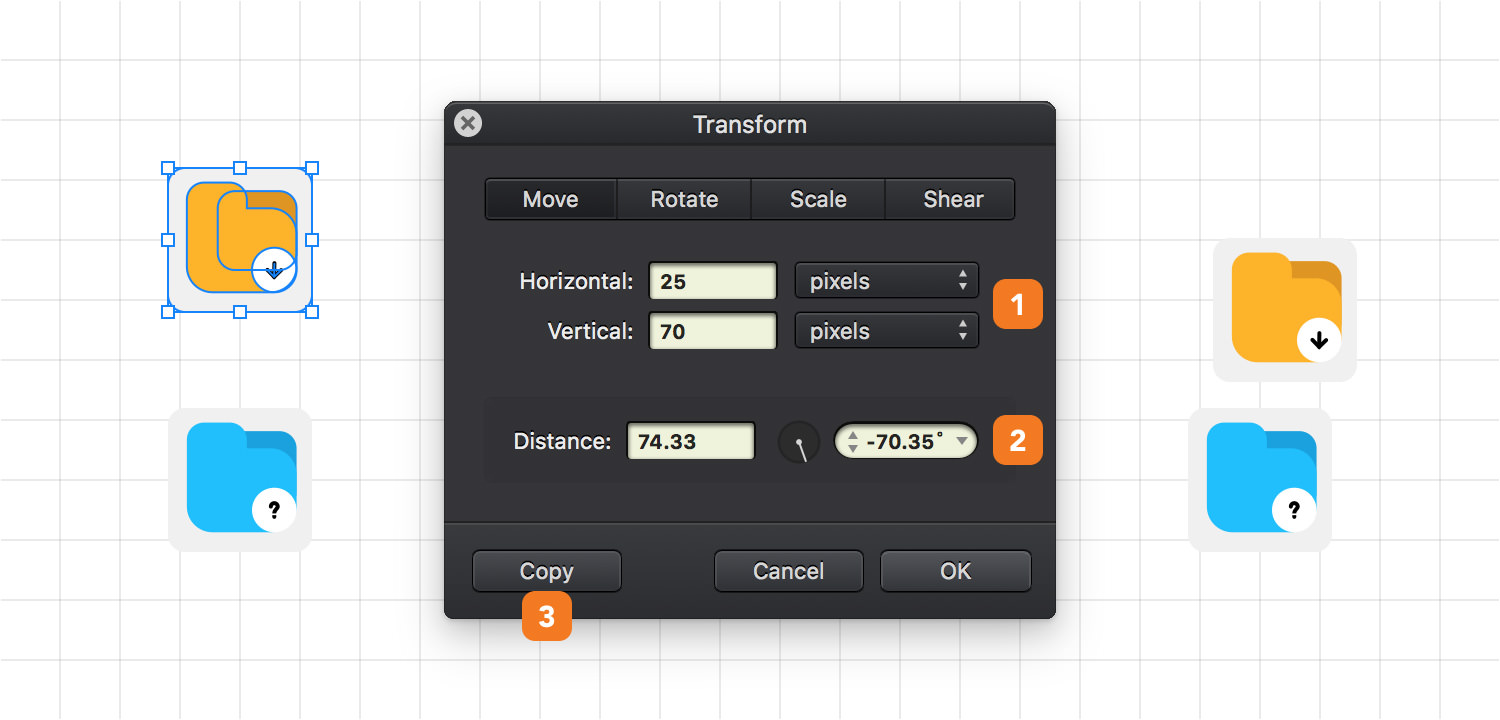
Move
-
Horizontal & Vertical - Numerically change the position of your object and set the measurement units to be used for the movement from: percent, pixels, inches, centimeters and millimeters.
-
Distance - Numerically set the distance or the direction of the movement using the Angle input box or the spinner.
-
Copy - Clicking this button will duplicate the objects first and then apply the rotation to the copied objects.
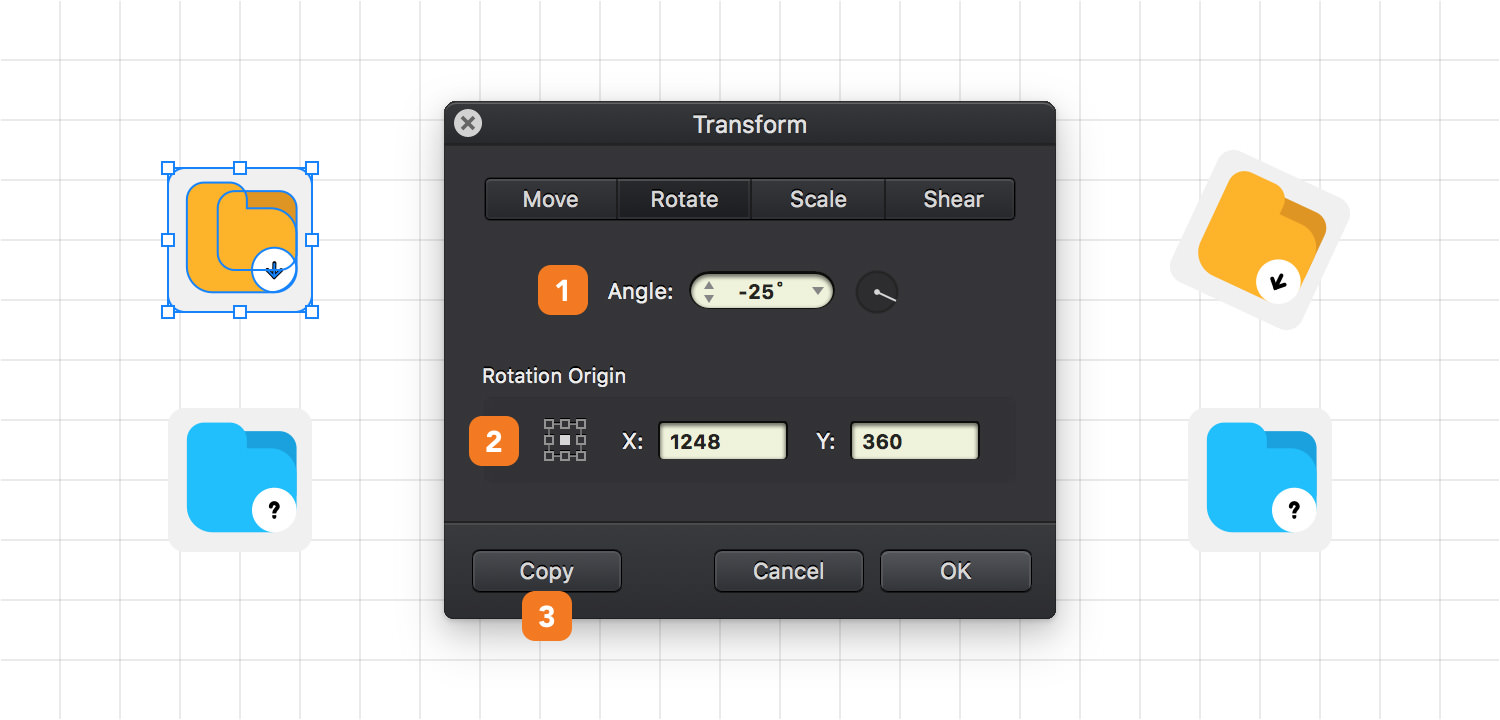
Rotate
-
Angle - Numerically set a rotation angle or use the angle spinner.
-
Rotation Origin - Numerically set the position of the reference point or click one of the nine preset reference points.
-
Copy - Clicking this button will duplicate the objects in the direction set in the Angle input box or with the Angle spinner.
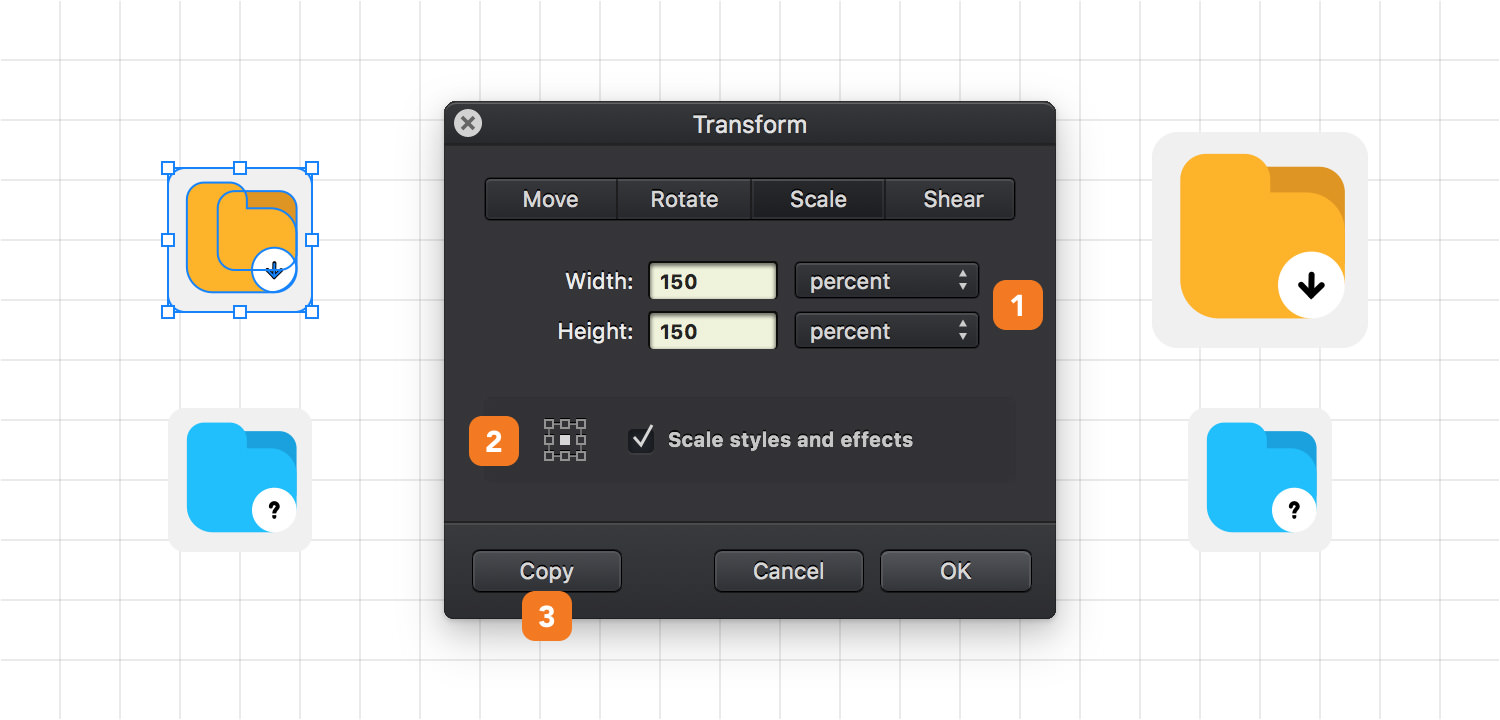
Scale
-
Width & Height - Numerically change the size of your object and set the measurement units to be used for the scaling from: percent, pixels, inches, centimeters and millimeters.
-
Scale Origin & Effects - Set the position of the reference point and check the Scale styles and effects box to also scale any effects applied to your objects.
-
Copy - Clicking this button will duplicate the objects first and then apply the scaling to the copied objects.
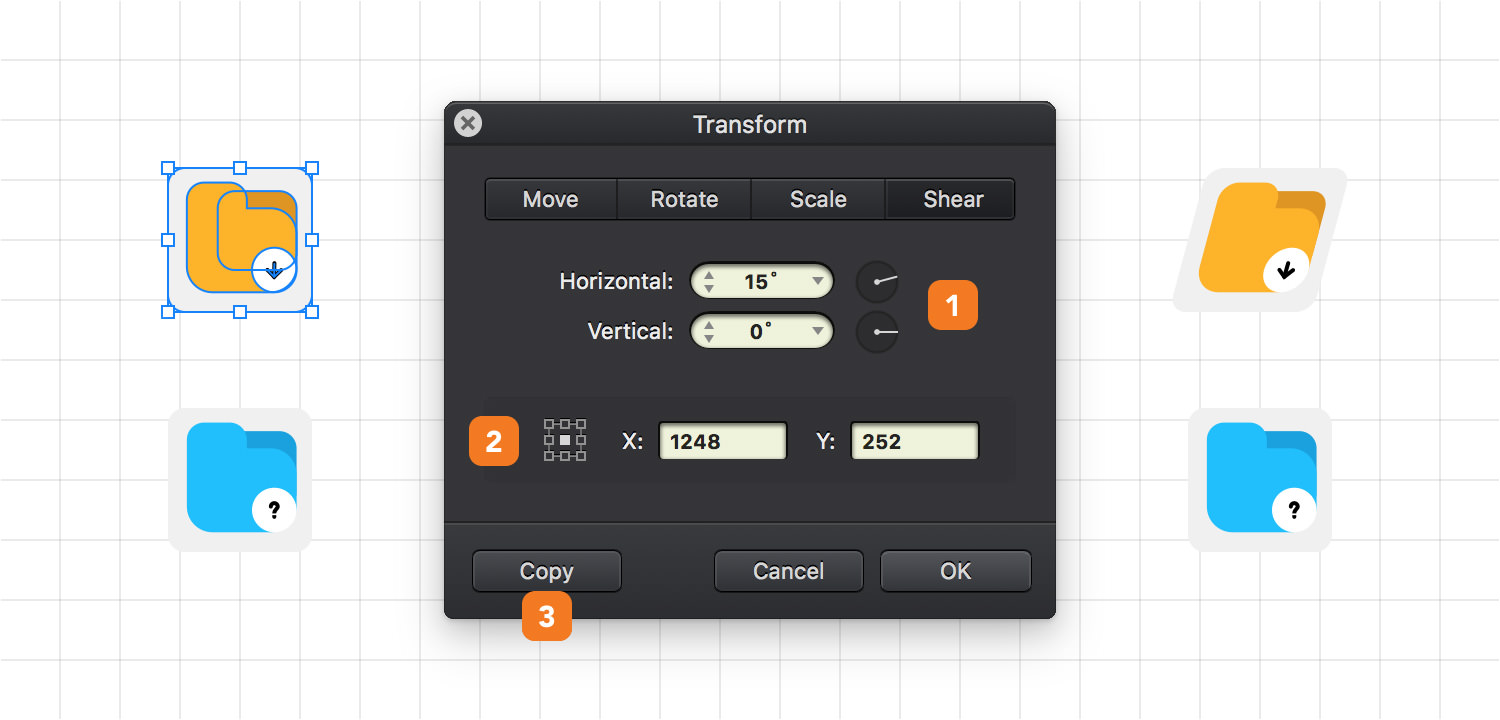
Shear
-
Horizontal & Vertical - Numerically set the shear angles or use the angle spinners.
-
Origin - Numerically set the position of the reference point or click one of the nine preset reference points.
-
Copy - Clicking this button will duplicate the objects first and then apply the slant transformation to the copied objects.
Next: Multiplying Objects >