
Document Tabs
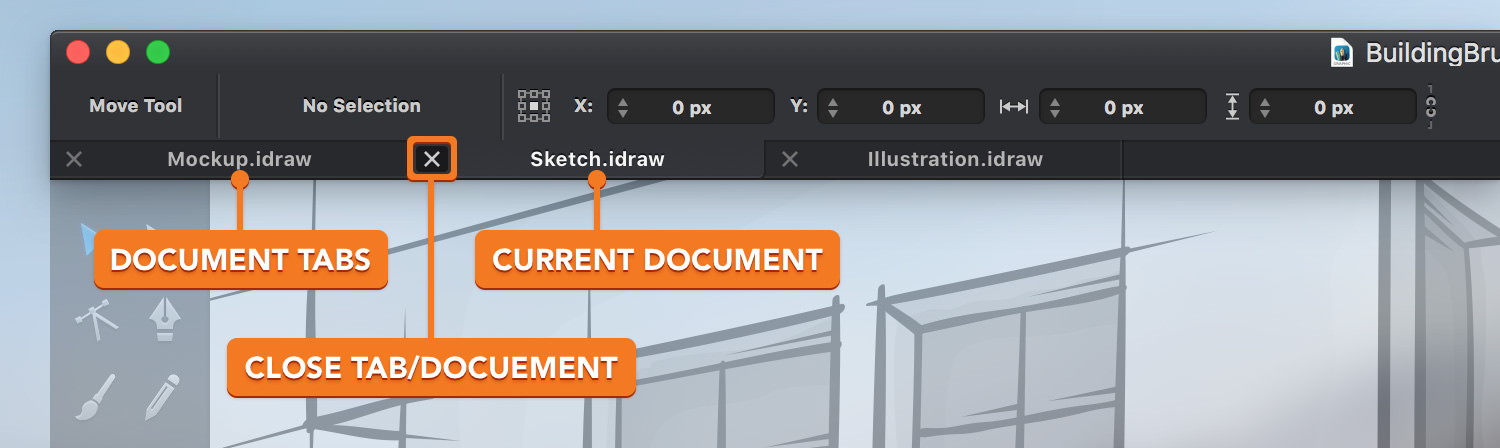
Rather than require you to constantly swap between many scattered windows – one for each open document – Graphic uses an elegant tab-based interface for switching between open documents. Document tabs are shown in the Tab bar (directly below the Tool Options bar).
Each open document is represented by a tab, with the current document shown as a lighter-colored ‘selected‘ tab.
Switching Between Documents
You can switch between open documents by clicking on a particular document’s tab in the Tab bar. The clicked document is then selected and shown in the Canvas area of the document window.
Alternatively, you can use the Control - Tab keyboard shortcut to quickly switch between tabs.
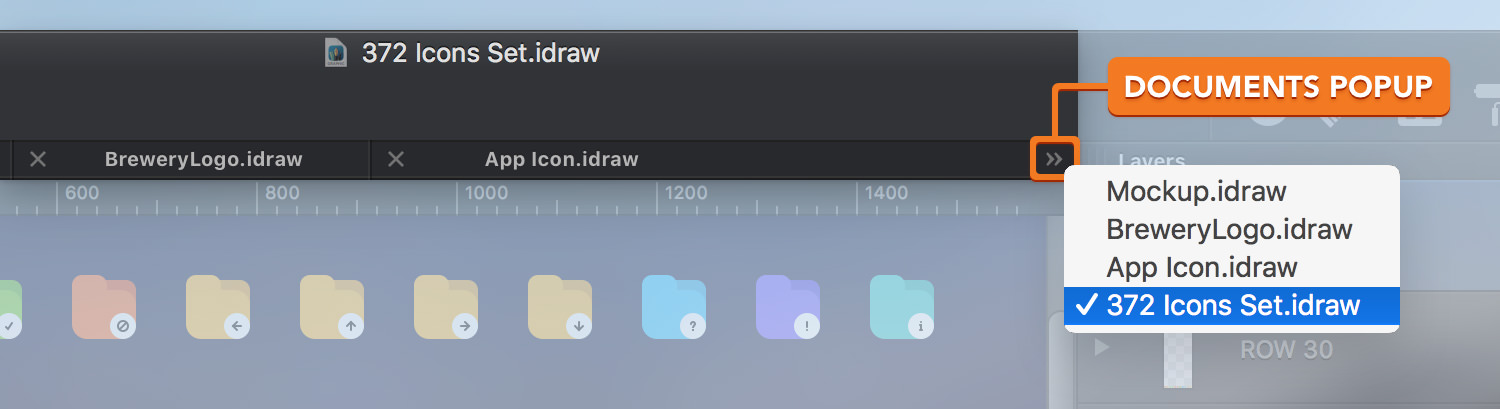
The documents pop-up menu can also be used to switch between open documents. Access the pop-up by clicking on the double-arrow button on the right side of the Tab bar.
Closing Documents
You can close any open document by clicking on the close button (×) in its tab.
Choose File > Close Document [⌘ - W] from the menu bar to close the active document.
Choose File > Close Window [⇧ - ⌘ - W] from the menu bar to close all opened documents.
Next: Inspector panes >