

Grouping Objects
Several objects can be combined into a group. Groups can be easily manipulated together as a single object. Grouping objects can be useful when you are looking to transform several objects without affecting their attributes or relative positions.
Use the Group commands from the Alignment pane of the Properties panel to group or ungroup multiple objects. Using one of the two commands you can:
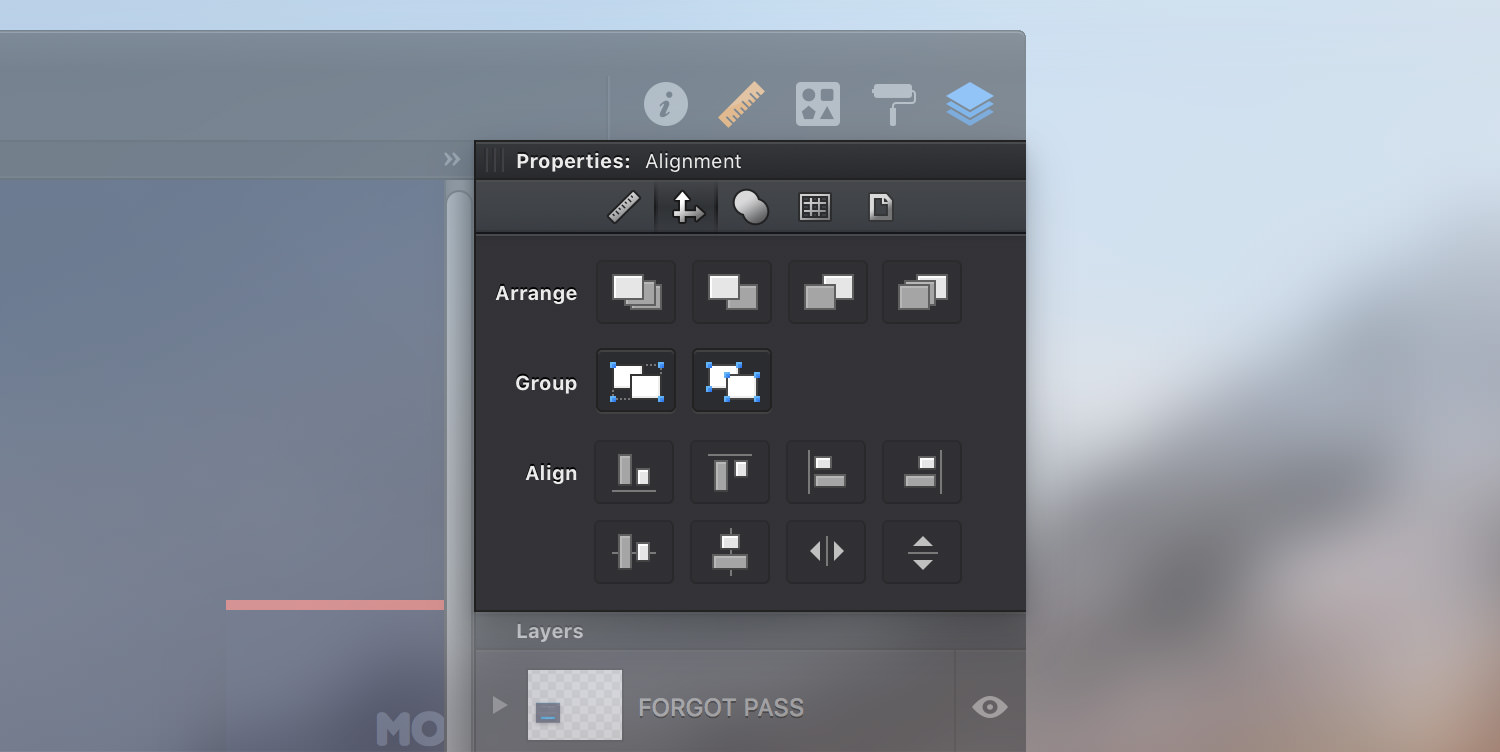
Group - Combines selected objects/groups into a group.
Alternatively, you can choose Arrange > Group [⌘ - G] from the menu bar or you can simply right click on the canvas and go to Group.
Ungroup - Removes the group and keeps the separate objects.
Alternatively, you can choose Arrange > Ungroup [⇧ - ⌘ - G] from the menu bar or you can simply right click on the canvas and go to Ungroup.
Getting used with the keyboard shortcuts will make things a lot easier and faster.
Newly made groups will show up as 'Group' in the Layers panel. Grouping objects from separate layers will create the group in the layer of the topmost selected object.
Groups can also be grouped with other objects or groups.
To select a single object from a group, choose the Move tool or the Path Selection tool and double click on it.
Next: Aligning Objects >