

Path Commands
Path commands can be used to link separate paths, to connect end points, to open or close paths, or to expand strokes into editable vector paths. Most of these commands can be found in the Path Tools pane from the Properties panel.
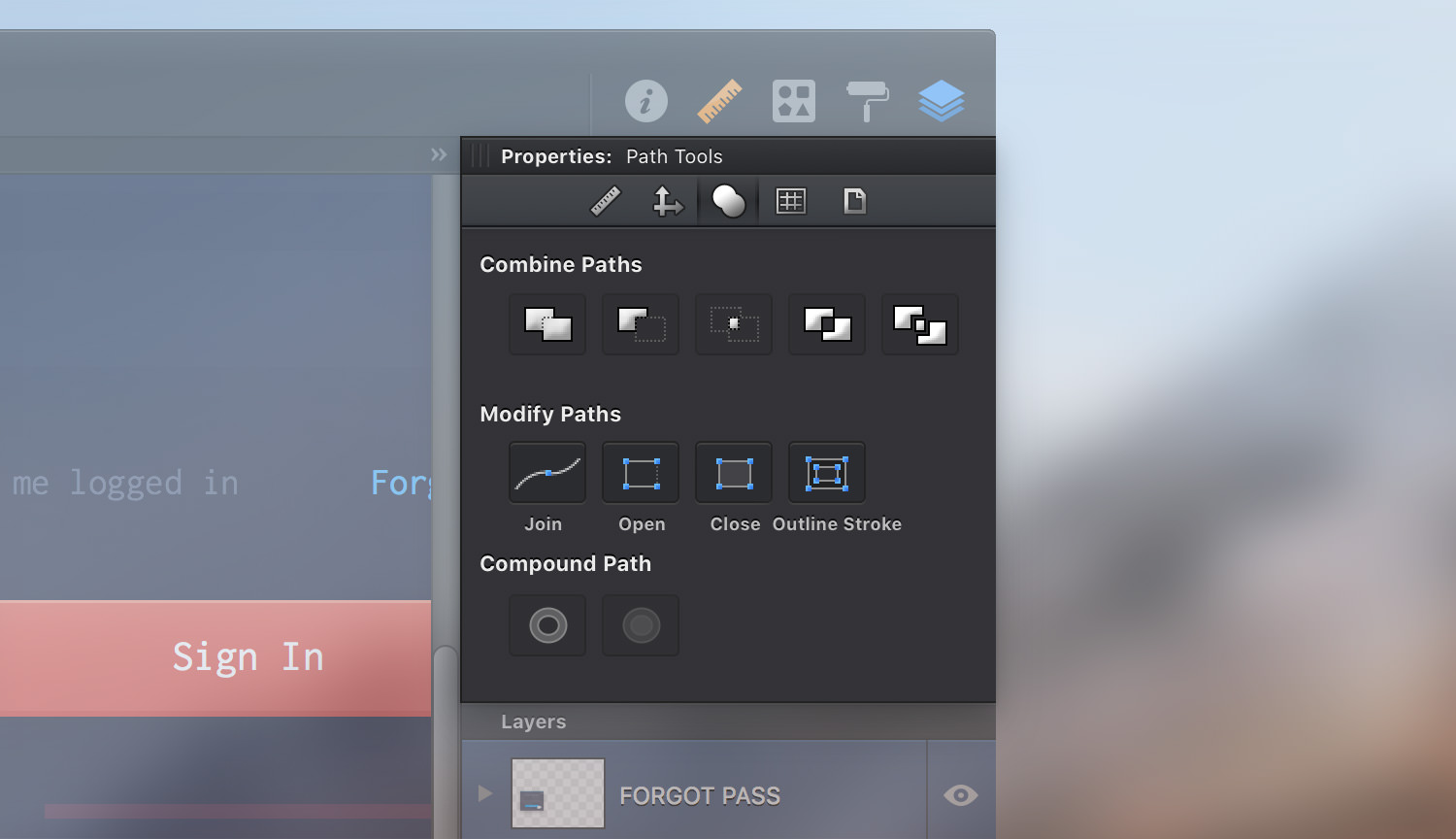
Join - Use this command to link two open paths together into a single continuous path. To join, select the two open paths and simply click the Join button. The paths will be joined at their nearest end points, with the path furthest back remaining in place.
Alternatively, you can choose Modify > Join Paths [⌘ - J] from the menu bar or you can simply right click on the canvas and go to Join Paths.
Open - A path is considered open if its start and end points are not together, connected by a line or curve segment. To open a closed path, select it and simply click the Open button. This will disconnect the starting points from the ending points and you’ll be able to move them separately.
Alternatively, you can choose Modify > Open Path from the menu bar.
Close - Closing an open path will connect the path’s start and end points with a line segment. To close a path, select it and simply click the Close button.
Alternatively, you can choose Modify > Close Path from the menu bar.
Outline Stroke - Use this command to convert the styled stroke of an object into an editable vector shape. If the target object also has a fill, the result will be a group containing both the previous fill and the converted stroke object.
Alternatively, you can choose Modify > Outline Stroke from the menu bar.
Going to Modify in the menu bar you will find three other path commands.
Connect Endpoints - Use this command to link two open paths together into a single closed shape. To connect, select the open paths and go to Modify > Connect Endpoints [⇧ - ⌘ - J]. This will generate new paths connecting the end points of the selected paths.
Disconnect Path - Use this command to disconnect any type of path or shape. This will cut your shape and you will get all the path sections that make up your selected shape.
Reverse Path Direction - Using this command you can easily reverse the starting and the ending point of a selected path.
Next: Rotating Path Points >